

Compose
If you'd like your users to be able to answer multiple-choice questions in your app, you can do so using the pick from list element. The pick from list is the ideal method for displaying multiple choices to the users of your app.
How to add a pick from list in Chorus
To add a new Pick from list, select "add new element" from the Compose page.
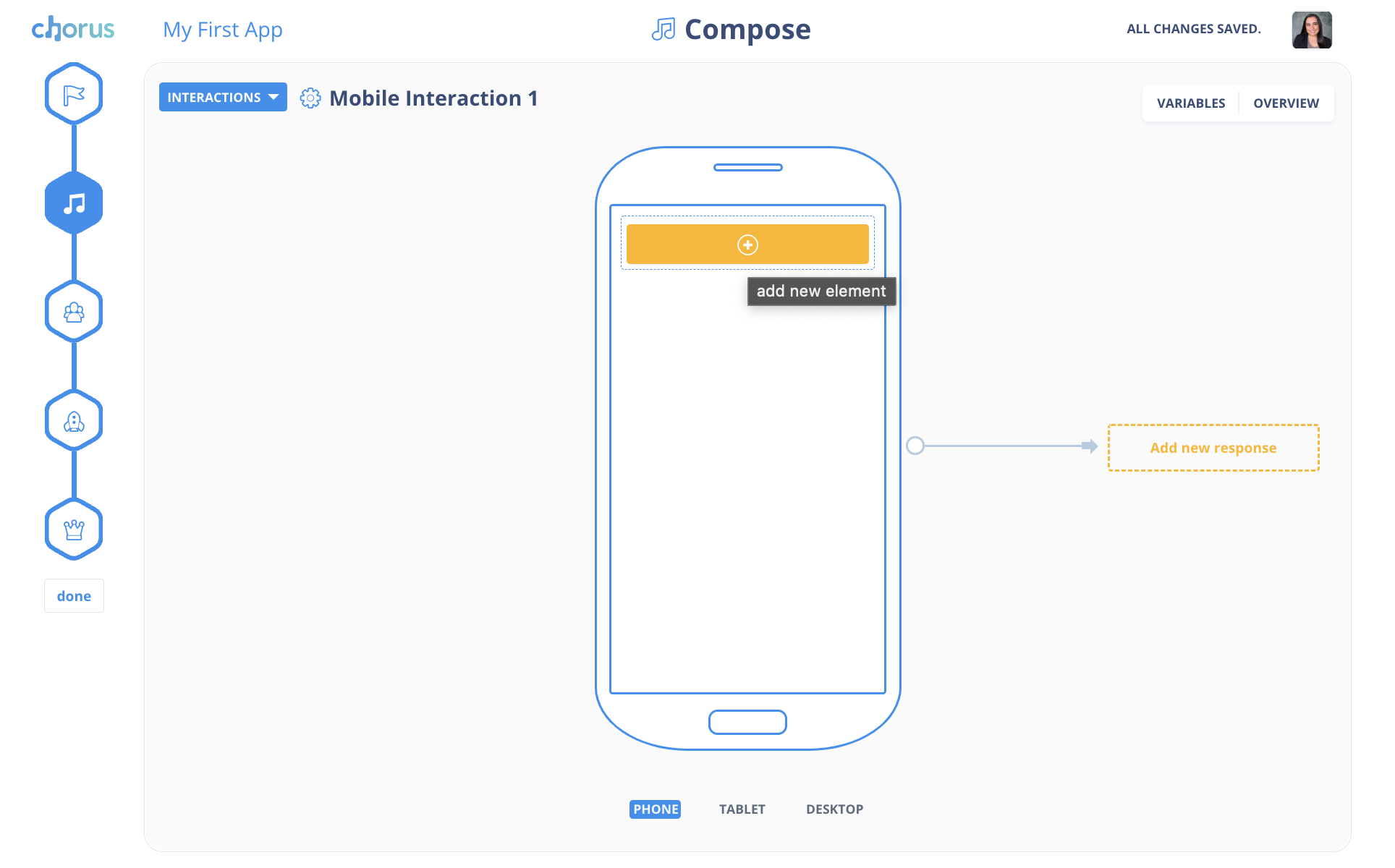
Select "Pick from List" from the add new element menu.

In the options menu, you can give your list a name and a caption. You can choose how you'd like your pick from list to display in your app by making a choice from the "type" drop down menu. Next you can create your list by clicking the "add another item" button and typing your item in the text field.

You can make additional adjustments to your list using the advanced options menu. When you add a pick from list to a page, you can see how it will look to your clients once you click "Add Pick From List." When you click on the arrow in your list, you should see all of the items that you added to your list. You Should be able to one or multiple items from your list ( depending on the specifications made in the options menu).
Managing Elements
Mousing over an element will highlight the element area. Use the pencil icon to edit or remove that particular element. You can also use the arrow icons to move an element up or down on a page. Click on the yellow plus sign to add a new element to a page.

Comments
0 comments
Please sign in to leave a comment.